
Do you want to search in all categories or in this category ?

This powerful feature is designed to streamline your contract management process, saving you valuable time and effort.
You can add and combine different filtering options to get your desired result. This is possible for contracts, tasks, parties, documents, e-signing and e-mails. Open one of these overview pages in the menu on the left side.
Click on the '+ Create View' button and fill in the name you want to give it. (You can still change this afterwards by clicking on 'Modify Name'.)
Start adding filters to modify this view exactly how you like. Don't forget to click on 'Save Changes' to save your view.

Another way is to add filters to your default view and save your view as new by clicking on 'Save as new'
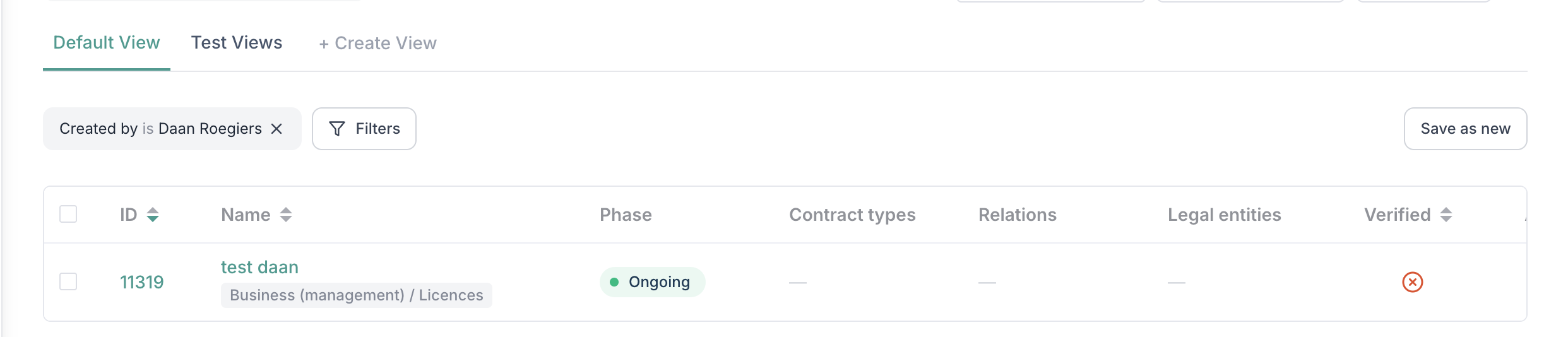
A new name bar will pop up at the top to give this view a name.

All your saved views be shown on the top of the page. You can always change the order of the views by dragging one in front of or behind another. The Default View will always stay at the front. The view you are using right now will be in green.

If you click on a view you have the possibility to change its name by clicking on 'Modify Name'. If you want to change the filters in this view, click on the filter you want to add or delete. Click on 'Save changes' if you want to edit this view or 'Save as new' if you want to create a new view.


